

Add a server
A server runs your clients’ Odoo instances. You register it in the panel, then run one command on it: the command prepares the machine and installs the agent, which connects it to the panel.
For a machine with no public IP address, such as one in an office behind a router, follow Add a server without a public IP instead.
Before you start
Section titled “Before you start”- A machine running one of the supported systems.
- An account on it that can run
sudo. - Ports 80 and 443 open to the internet, and 51871/udp open to your other servers. See Server ports.
Register the server
Section titled “Register the server”-
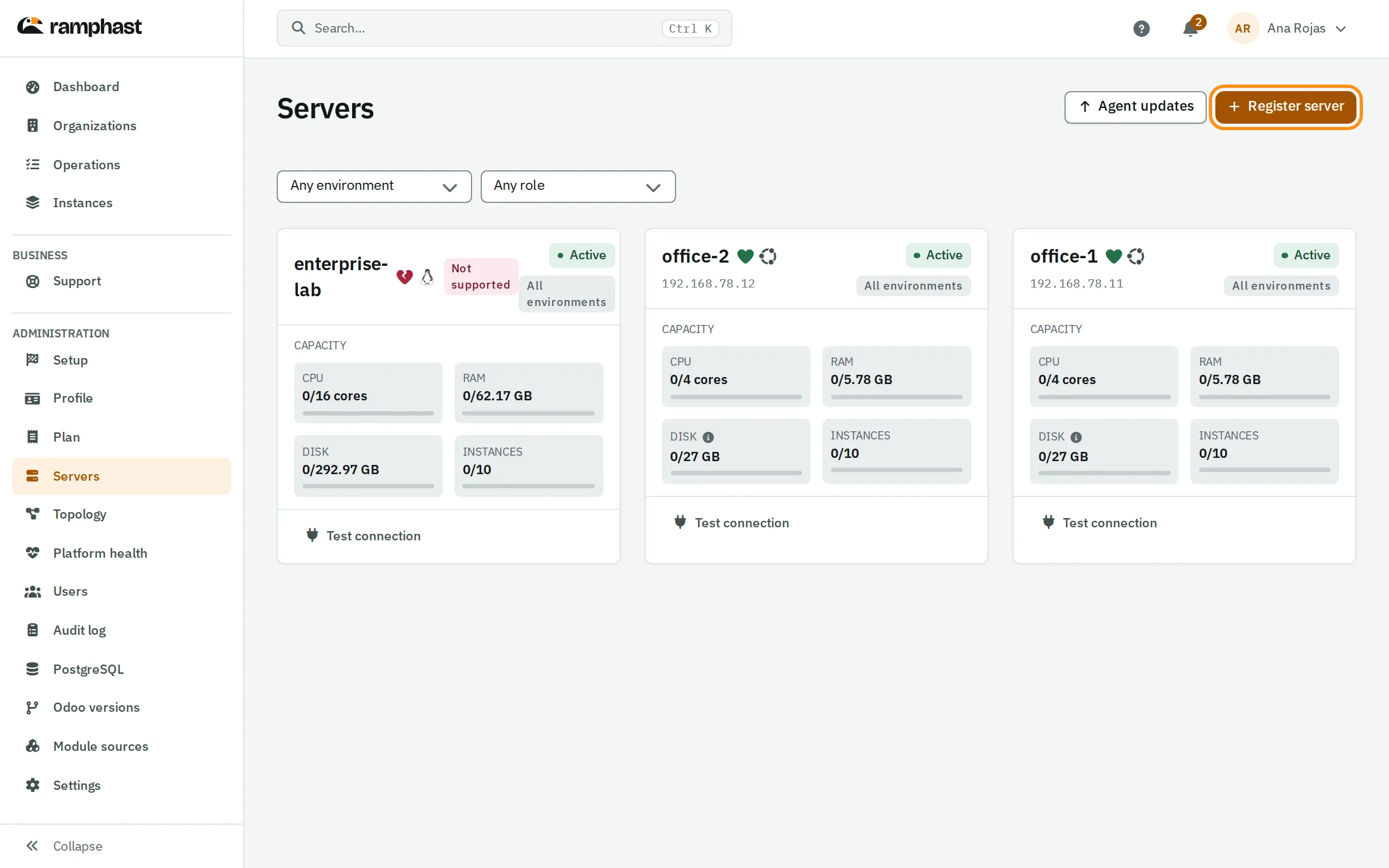
In the panel, open Servers and select Register server.
The button is at the top right of the list.
-
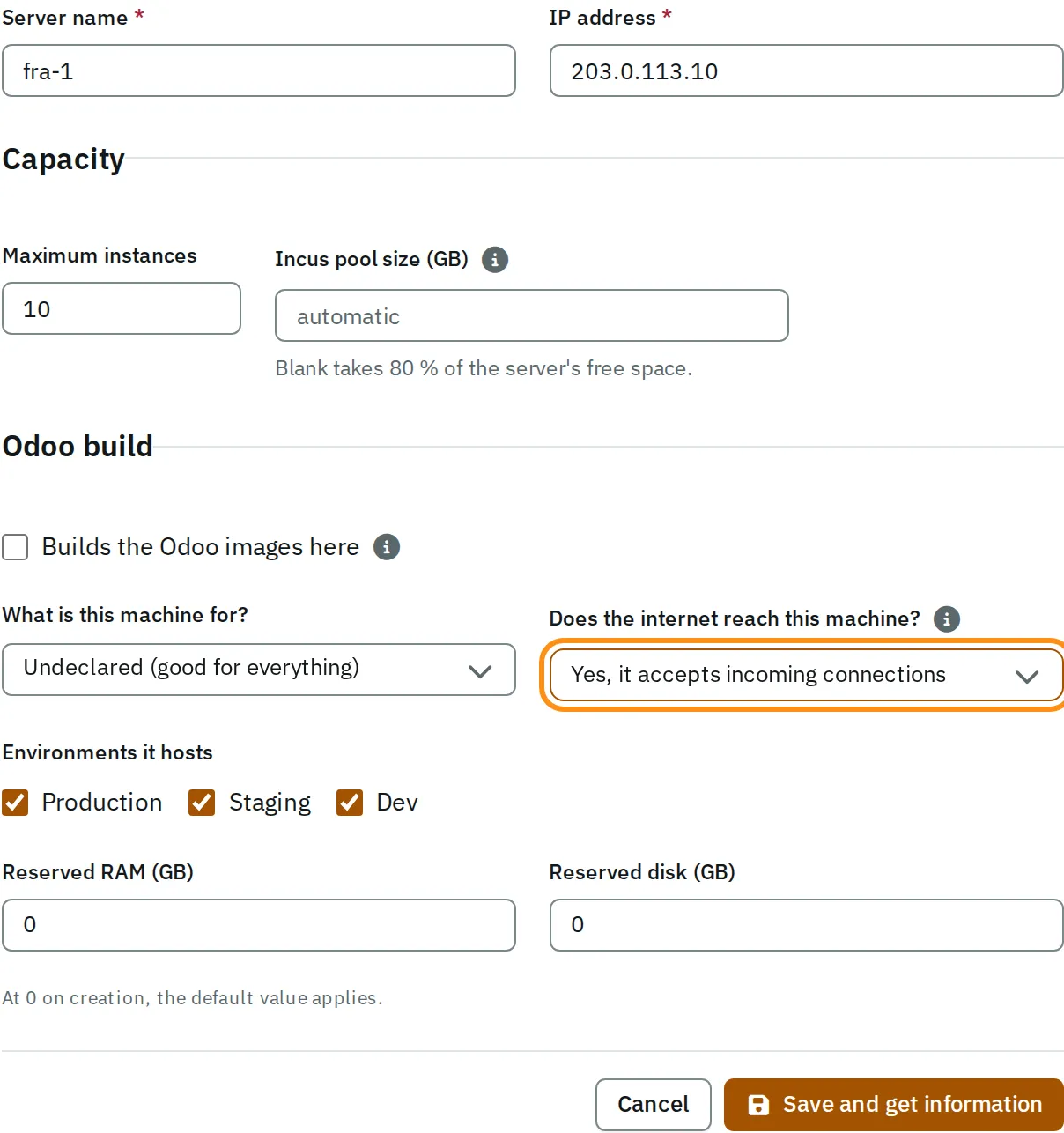
Enter a Server name and the machine’s public IP address.
-
In What is this machine for?, keep Undeclared (good for everything), unless the machine will only run Postgres or only keep internal backups.
-
In Does the internet reach this machine?, select Yes, it accepts incoming connections.
The form now looks like this:
-
Select Save and get information.
The panel registers the server and shows the command that installs the agent. The command carries a single-use token and is shown only once.
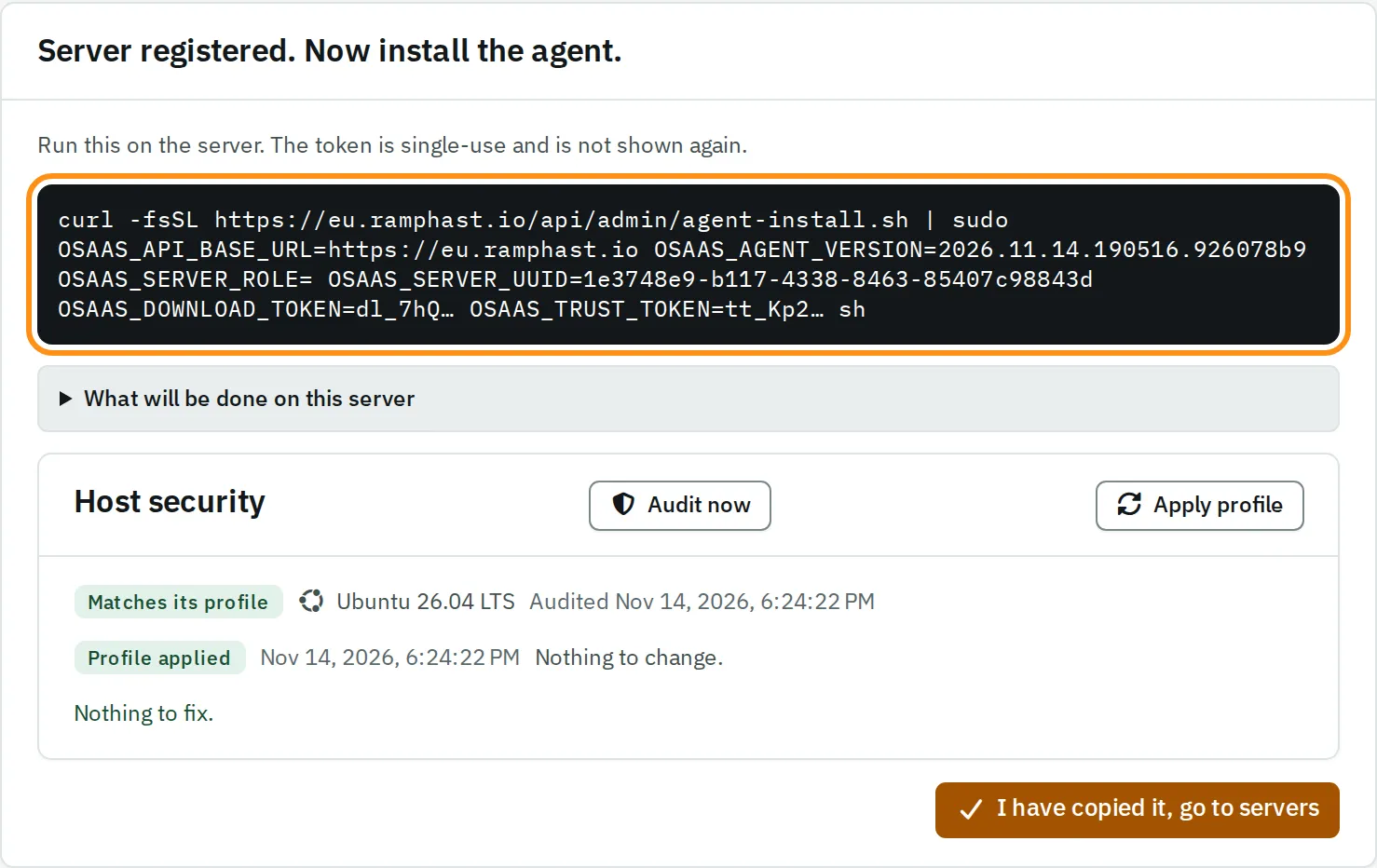
To read what the command will change on the machine before you run it, expand What will be done on this server.
Install the agent
Section titled “Install the agent”-
Copy the command.
-
Connect to the server over SSH and run the command.
It prints what it will change, prepares the machine (Incus, Caddy, the firewall, automatic security updates) and installs the agent. It refuses to run on a system that is not supported, before changing anything.
-
In the panel, select I have copied it, go to servers, then open the server.
When Agent shows Connected, the server is ready for instances.
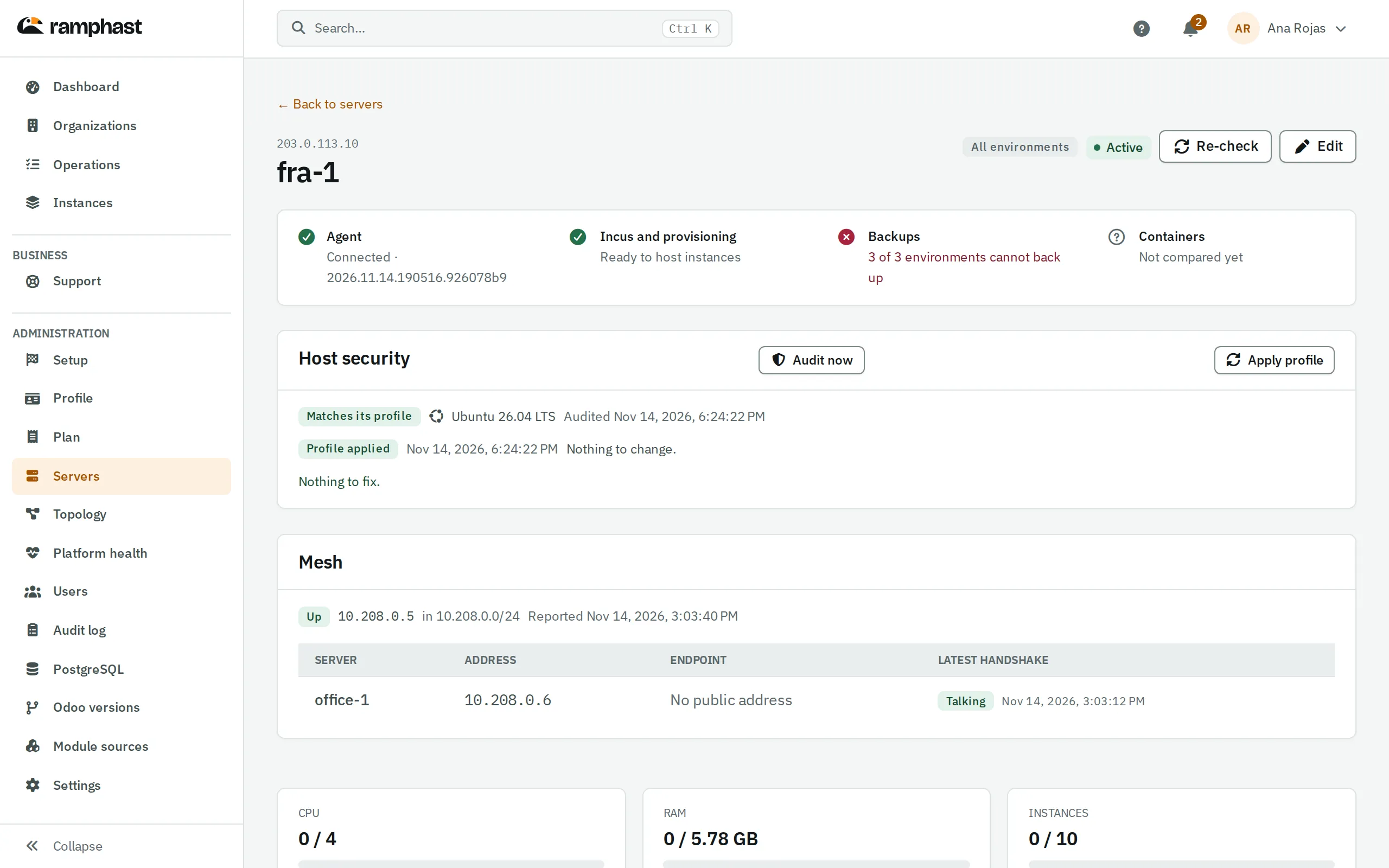
Backups stays red until you set where client backups go, in Settings → Client backups.
If you lost the command
Section titled “If you lost the command”The token in the command expires and is single-use. Open the server, and in Install the agent select Generate command to get a new one. A new command invalidates the previous one.